Teams Room Instructions
Reserve & Start a Teams Meeting Room
Reserve a Teams Room
Start by opening Outlook and clicking the calendar icon in the bottom left corner.
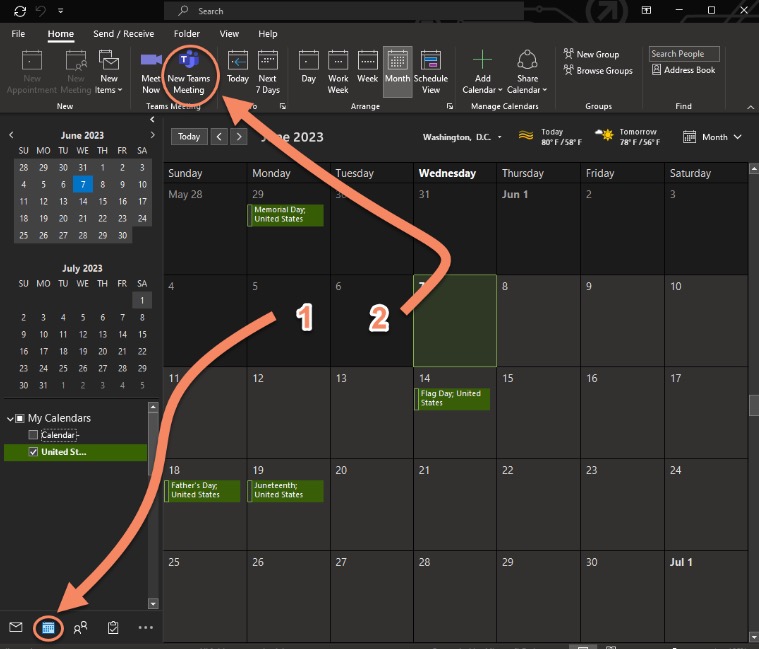
Next, on the top ribbon, click New Teams Meeting.
In the window that opens:
Name your meeting in Title blank
Add the name of your conference room to the Required blank | all conference rooms start with conf-
Feel free to add any other people to the required/ optional fields.
Select the meeting start and end times | Outlook will not allow you to double book a room.
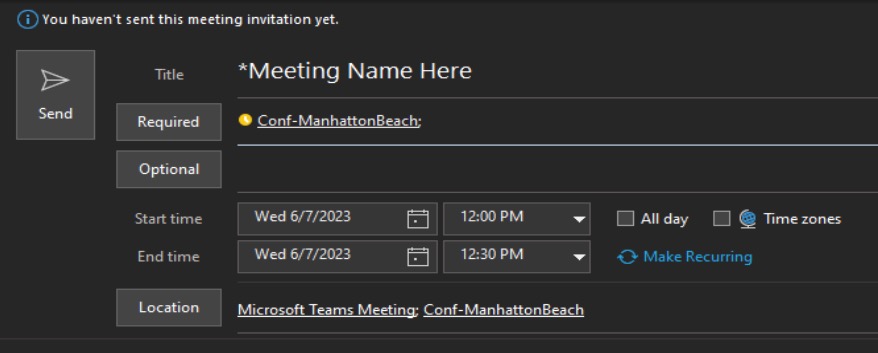
Click Send, all recipients will receive an email, and the room will be reserved
Start a Meeting that was booked
If you have reserved the room, you will see your meeting on the control screen.
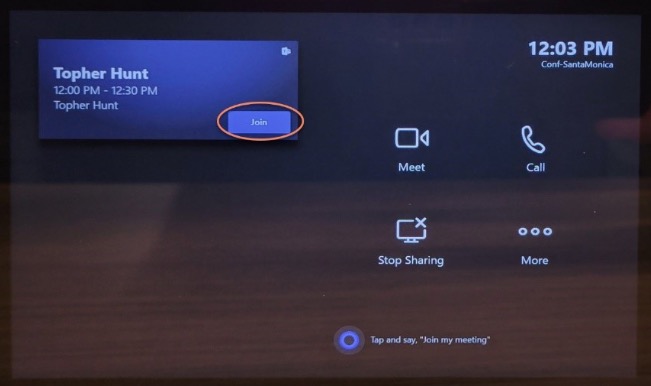
Tap your scheduled meeting to begin. This will send a notification to all invited users.
Invite a Participant into a meeting
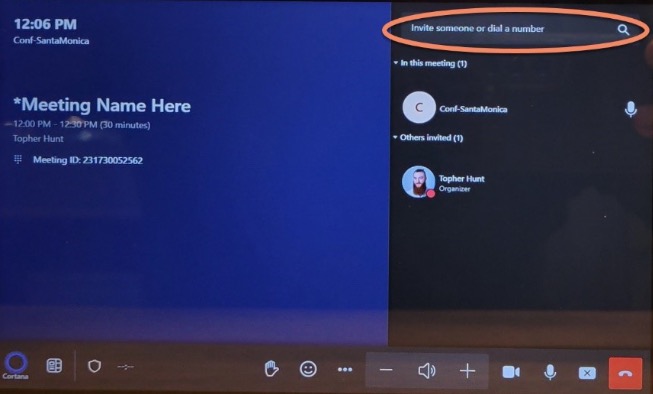
Once a meeting is started, users can be added to the meeting by typing their names in the upper right corner of the control screen
How to Start a new Meeting Directly from a conference room
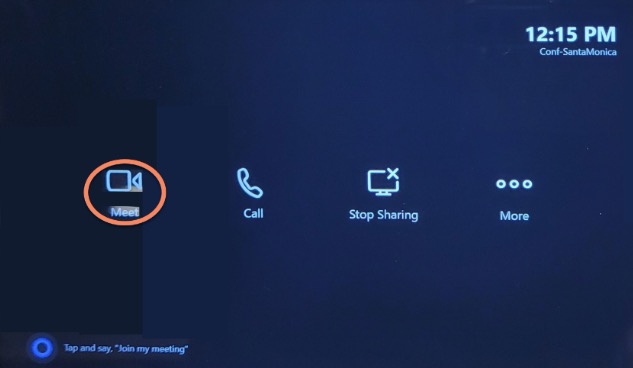
If you do not have a scheduled meeting, you can tap the Meet Now icon on the control screen
Sharing Content
Sharing Content from the Computer
By default, the Teams Room will share the screen of the RDP computer. | The screen will have a red border when shared |
The RDP computer can be used to remote into your workstation to share content directly from your PC.
If you have a laptop, you can connect the provided Type C USB cable to share your laptops screen.
If you do not wish to share content, tap the |X| in the bottom right next to the red |Leave| button.

How to Connect your laptop and shareStart a Meeting that was booked
Once your laptop is connected to the type C cable, the screen will automatically switch to that input. Anything on your screen will be displayed to the meeting.
Remote into your computer using Remote Desktop
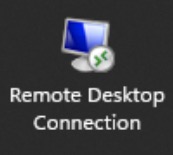
Click the RDP icon on the taskbar or in the start menu.
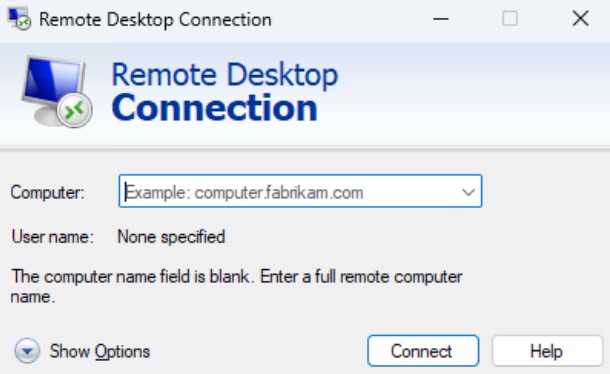
Enter your PC name in the blank (If you have never remoted into your PC before, they a one-time ticket may need to be opened to enable this feature).
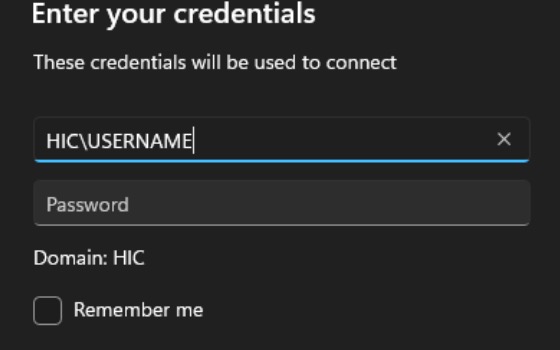
Type “HIC\YourUserName”
Enter your Password and hit enter
Do NOT check “Remember Me”
Approve the connections and you will be connected to your desktop PC.
Show and Hide Content
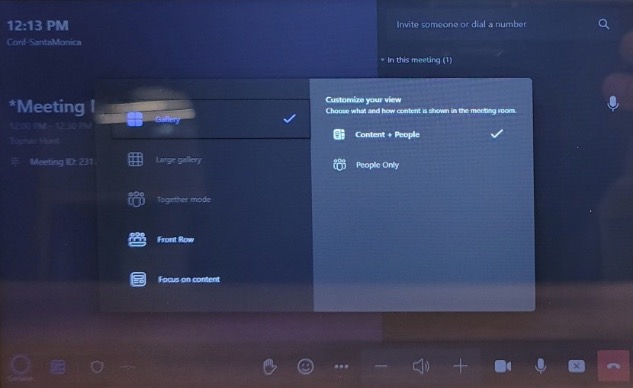
to choose what you want to seeon the content screen, tap the icon in the lower left next to Cortana
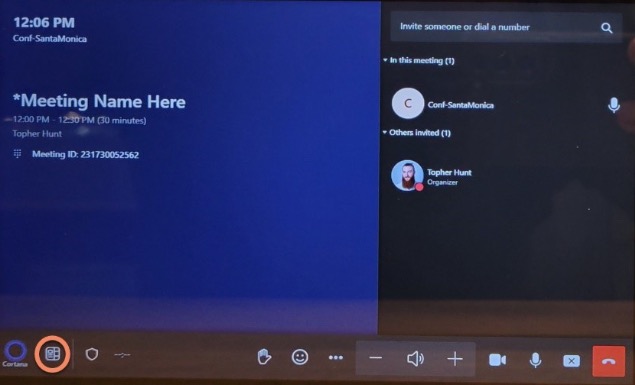
tap the preferred view option. | Content + People or People Only |
What to do when laptop is not connecting
Access Files on Fileshare
Net drives can be accessed via Remote Desktop Connection to your assigned PC.
Use Office Online
The Chrome and Edge icons on the desktop are set to automatically open in Incognito mode. None of your personal info will remain on the PC when you close the bowser window.
To access Office Web App go to Portal.Office.com
Use Office Desktop
Click the Icons on the desktop and start menu for your desired application. Word, PowerPoint, Excel, etc. (Outlook can only be used on the WebApp).
How to Check Email Online
Click the icon on the desktop called Email and login using your email address and password.
Cisco, Zoom and Google Meet Meetings
WebEx Plugin: https://akamaicdn.webex.com/upgradeserver/client/ptool/42.6.1/msi/webexplugin.msi
Zoom Plugin: https://zoom.us/client/5.14.10.876/ZoomOutlookPluginSetup.msi
Google Meet: Pending…
Open your outlook calendar and click Schedule Meeting
Click the don’t host online so that it removes the Microsoft teams meeting.
Put the conference room name in the ‘Required’ blank and the URL of your meeting in the ‘Location” blank .
Transfer Calls to the Conference Room
You may want to check in with someone before you transfer a call.
When you’re in a call, select More actions ( … ) Consult then transfer.
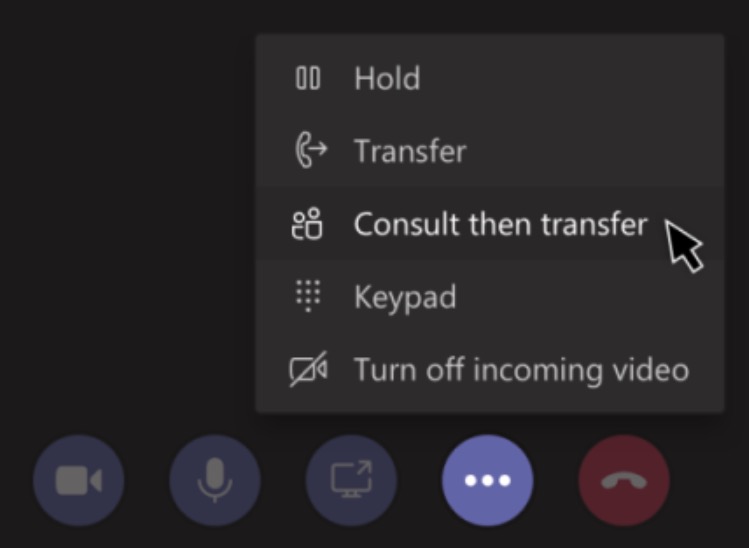
Teams-consult then transfer menu screen
Under Choose a person to consult, start typing the name of the person you want to reach and select them when they appear.
Consult with them by calling or using chat.
When you’re ready, hit Transfer.
Call to a Conference Room
From teams on your device, type the name of the conference room you would like to call and click the phone icon. Teams rooms begin with ‘Conf-‘ followed by the room name i.e. Conf-Agoura
Do’s and Don’ts
- Do, feel free to contact helpdesk if you have any questions regarding the system.
- Text: 323-746-2020 or NowcomHelpdesk@nowcom.com
- Don’t, unplug or alter the system in any way.
- Do, make calls from the Teams Room computer using the Control Screen.
- Don’t, Make calls from connected devices | Laptops or RDP computers |
- Do, make sure that the room is clean when you leave.
- Don’t, leave a mess.